Appearance
 VR Mode
ACROWRX supports an immersive Virtual Reality experience that lets you relive your aerobatic flights from the judge's perspective or from inside the cockpit. VR mode uses the WebXR standard and runs directly inside your headset's built-in browser — no extra app to install.
⚠️ - SUBSCRIPTION REQUIRED
VR Mode requires a VR subscription. You can purchase it from your Personal page.
Requirements
| Requirement | Details |
|---|---|
| VR headset | Tested on Meta Quest headsets (Quest 2 / Quest 3 / Quest Pro). Other WebXR-capable headsets may work but are not officially tested. |
| Browser | Use the built-in Meta Quest Browser (Chromium-based). The browser must support WebXR. |
| Connection | ACROWRX must be accessed over HTTPS (https://www.acrowrx.com). WebXR is not available on plain HTTP. |
| Subscription | An active VR subscription is required. The VR button will appear disabled if you do not have one. |
| Flight source | The flight must be saved in your ACROWRX database (uploaded and stored under your Personal page). VR is not available for local-only files that have not been uploaded. |
Opening Flights in VR (Headset Workflow)
VR works best when you treat the headset browser as your viewer and your Personal → Flights list as the library. Follow this workflow:
1. Upload the flight on a computer first
Before using VR, upload your .acrowrx (or other supported) flight file from a desktop or laptop:
- Sign in at www.acrowrx.com.
- Open Analysis and upload the file, or upload from your Personal page.
- Confirm the flight appears in your Flights tab.
⚠️ - DATABASE REQUIRED
VR only works for flights stored in the ACROWRX cloud database. If you open a file locally in Analysis without uploading it, the VR button will not appear.
2. Open the flight from your VR headset browser
- Put on your Meta Quest headset.
- Open the Meta Quest Browser.
- Go to www.acrowrx.com and sign in to the same account you used to upload the flight.
- Open your Personal page.
- Go to the Flights tab and select the flight you want to review.
- You can click the flight row to open Analysis, or
- Use the Open in VR button on the row (when available) to jump straight into Chase VR.
- Once the flight loads, enter VR using the steps in How to Enter VR Mode below.
📌 - TIP
Stay signed in on the headset browser so you do not have to re-authenticate every session. Bookmark https://www.acrowrx.com/profile for quick access to your flight list.
3. Choose Judge VR or Chase VR
| Mode | Best for | How to start |
|---|---|---|
| Judge VR | Box perspective, scoring review, figure geometry | Open the flight in Analysis → Judge View → click the VR button |
| Chase VR | Cockpit / first-person replay | Open the flight in Analysis → Chase View → switch to Airplane Mode  → click the VR button → click the VR button |
Recommended Airplanes for VR
Chase VR includes a calibrated cockpit seat position and floating instrument readouts (height, speed, load factor). These work on every model, but some airframes are tuned especially well for VR:
| Airplane | Why we recommend it |
|---|---|
| Extra 330SCVR | Purpose-built VR cockpit calibration and instrument panel layout. Best choice for competition Extra 330SC flights in immersive cockpit view. |
| Decathlon | Excellent open-cockpit trainer perspective with a well-calibrated seat position. A great choice for club training flights and pilots new to VR. |
| DecathlonUND | Same VR cockpit tuning as the Decathlon, for undecorated / simplified livery. |
📌 - TIP
If the default seat position feels slightly off on any model, use the right thumbstick for position and Grip (middle finger squeeze) + thumbstick up/down for height in Chase VR, then click the thumbstick to reset. See Chase VR Controller Mapping below.
If your logged airplane model does not match one of the recommended types, you can still use VR — zoom and seat controls help compensate on other airframes.
How to Enter VR Mode
- Put on your VR headset and open the built-in browser (or continue from the workflow above).
- Navigate to www.acrowrx.com and sign in.
- Open a flight from your Personal → Flights database (see Opening Flights in VR).
- Once the flight loads in Analysis, the VR button becomes available:
- Judge View — VR button in the on-screen button cluster (top-right).
- Chase View — switch to Airplane Mode first, then the VR button appears below the camera controls.
- Click the VR button to enter immersive view. The headset should switch automatically.
📌 - TIP
If VR does not start automatically, confirm WebXR permissions are enabled, you are on HTTPS, and your Quest controllers are powered on. Click the VR button again to retry.
Controller Overview
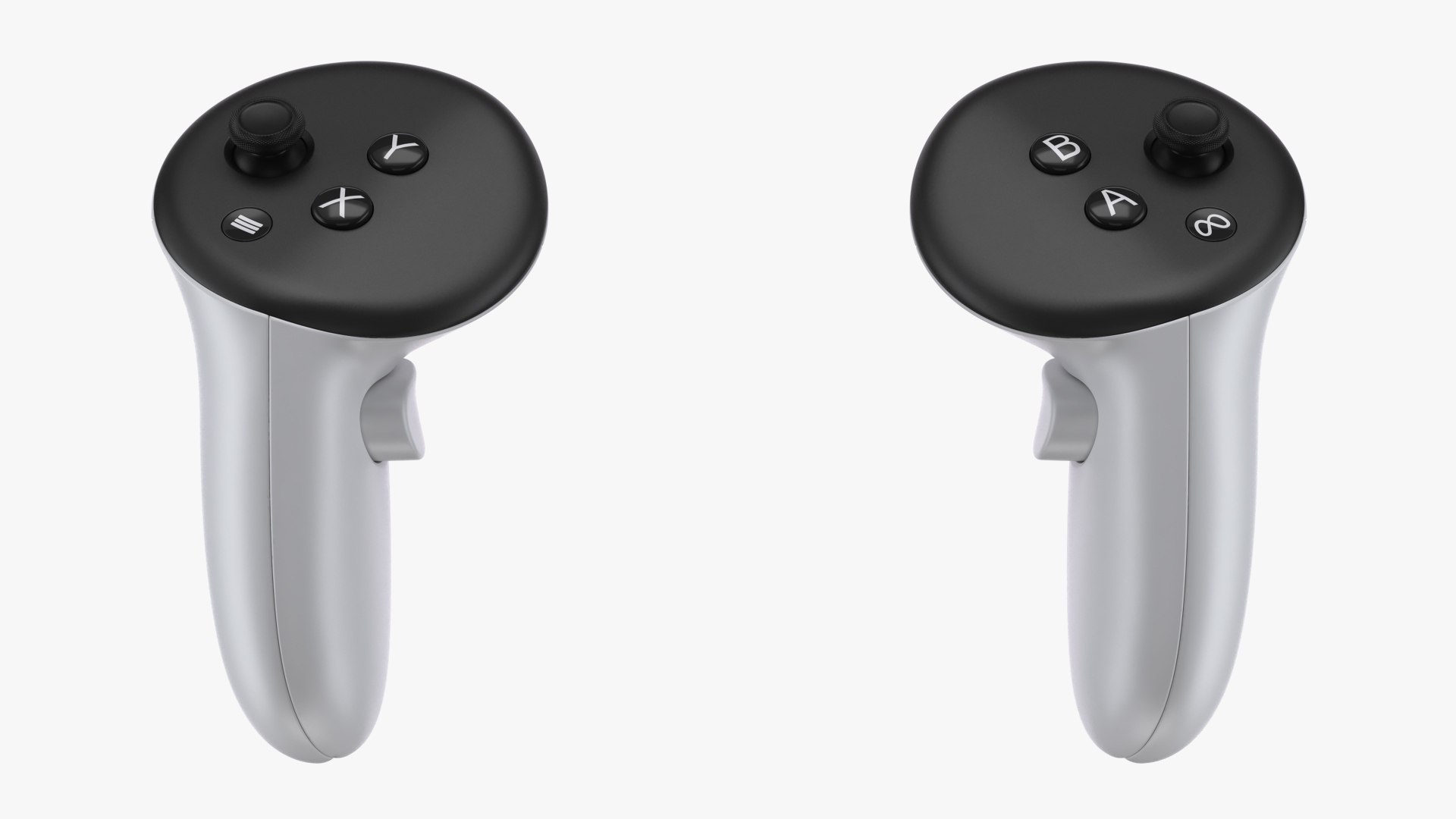
ACROWRX VR is designed for Meta Quest Touch Plus controllers (Quest 2 / Quest 3 / Quest Pro). The photo below shows the ring-free Quest 3 layout. Menu (left) and Meta (right) system buttons are not used by ACROWRX.
Each mode has its own labeled diagram below. Trigger and Grip are different buttons — do not confuse them.
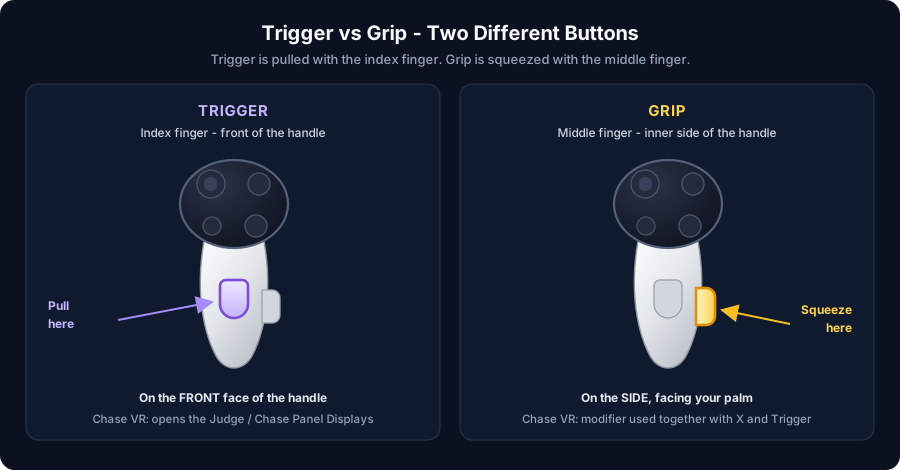
Hardware reference
| Control | Finger | Physical location | Chase VR | Judge VR |
|---|---|---|---|---|
| Trigger | Index | Curved button on the front of the handle (under the faceplate) | Opens Panel Displays; hold + stick orbits the panel | Not used |
| Grip | Middle | Side squeeze button facing your palm (not the trigger) | Seat height; + X = jump to start; + Trigger = close panel | Not used |
| Thumbstick | Thumb | Faceplate (left: upper-left; right: upper-right) | Move seat; click to reset | Not used |
| X / Y | Thumb | Left controller faceplate | Rewind / half speed | Rewind / fast forward / scale |
| A / B | Thumb | Right controller faceplate | Play / pause | Play / pause / zoom |
| Meta | Thumb | Right controller faceplate, lower-right (infinity logo) | Hold to align view | Hold to align view |
| Menu | Thumb | Left controller faceplate, lower-left (three lines) | Not used | Not used |
⚠️ - COMMON MISTAKE
Trigger (index finger, front) and Grip (middle finger, side squeeze) are not the same button. In Chase VR, Panel Displays are opened with Trigger only. Seat height, jump-to-start, and closing a Panel Display all use Grip.
📢 - NOTE
Hand tracking alone is not supported — keep both Quest controllers powered on and paired for all VR commands.
How to read the tables below
- Press — tap and release (detected on the initial down-stroke).
- Hold — keep the button pressed; the action repeats while held.
- Press while holding … — hold the first button, then tap the second.
Judge VR
In Judge VR you stand at the judge's position and watch the airplane fly the sequence. Turn your head to look around the box.
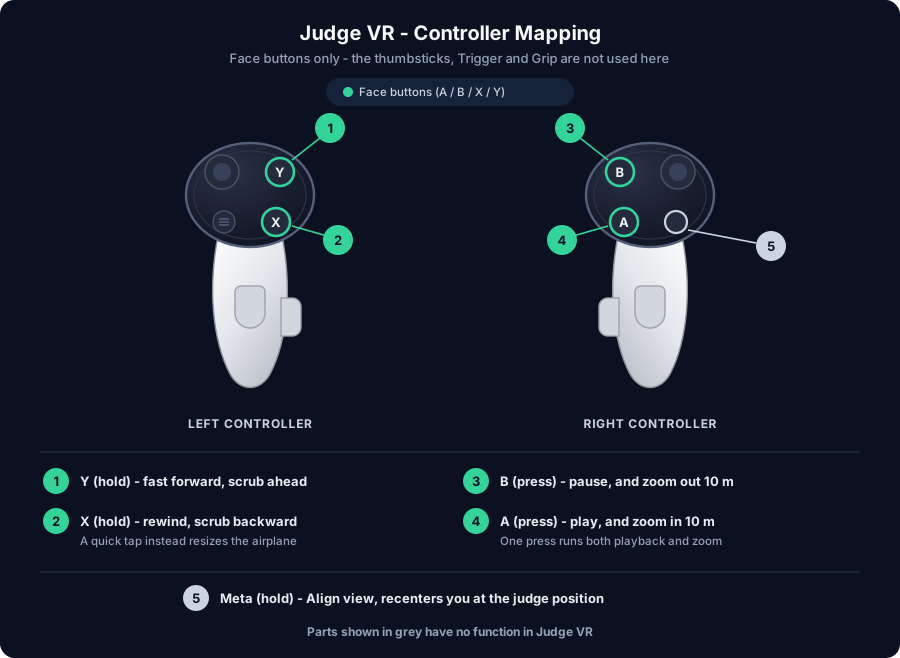
Judge VR — Right controller
| Input | Action |
|---|---|
| A (press) | Play if the flight is paused and zoom in (viewpoint moves 10 m closer to the box) |
| B (press) | Pause if the flight is playing and zoom out (viewpoint moves 10 m farther from the box) |
| Meta (hold) | Align view — recenters you so straight ahead faces the box |
📢 - NOTE
On the right controller, A and B each run two actions on a single press — playback (when applicable) and zoom. There is no separate zoom-only button in Judge VR.
Judge VR — Left controller
| Input | Action |
|---|---|
| X (hold) | Rewind — scrub backward through the flight while held |
| Y (hold) | Fast forward — scrub forward through the flight while held |
| X (press) | Shrink airplane model (−0.5× scale, minimum 1×) |
| Y (press) | Enlarge airplane model (+0.5× scale, maximum 5×) |
📢 - NOTE
X and Y also overlap: the first moment you press adjusts airplane scale, and continuing to hold scrubs time. Tap quickly if you only want a scale change; hold if you want to scrub.
📌 - TIP
If the aircraft looks too small or too far away, combine right A/B (zoom) with a quick left X/Y tap (scale). Use hold X/Y when you need to scrub to a specific figure.
Chase VR (Cockpit)
Chase VR places you inside the cockpit. The world moves with the airplane — the same perspective as Airplane Mode in desktop Chase View.
Chase VR shows live instrument readouts (height, speed, G-load) plus two optional floating screens — the Judge Panel Display and the Chase Panel Display — that you open with the triggers.
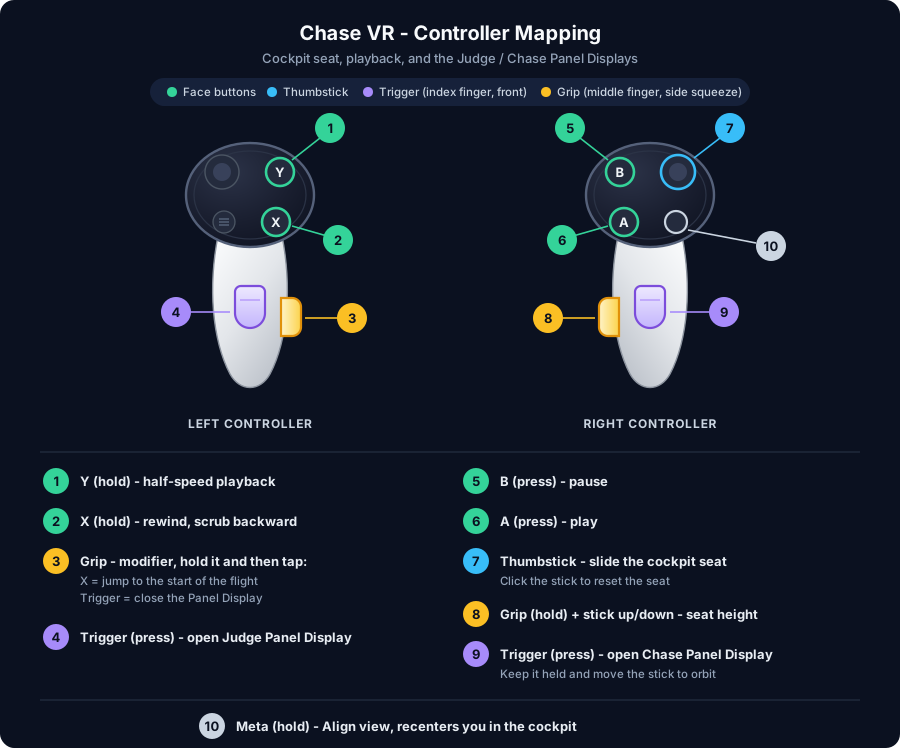
Chase VR — Right controller
| Input | Action |
|---|---|
| A (press) | Play (only when paused) |
| B (press) | Pause (only when playing) |
| Thumbstick (move) | Move cockpit seat left/right and forward/aft |
| Grip (middle finger, hold) + Thumbstick up/down | Move cockpit seat up/down |
| Click thumbstick (press) | Reset seat to the default position for this airplane |
| Trigger (index finger, press) | Open the Chase Panel Display |
| Grip (middle finger, hold) + Trigger (index finger, press) | Close the Panel Display |
| Trigger (index finger, hold) + Thumbstick (move) | Orbit / aim the Chase Panel Display (only while it is open) |
| Meta (hold) | Align view — recenters you facing forward in the cockpit |
📢 - NOTE
While the Chase Panel Display is open and Trigger is held (without Grip), the thumbstick orbits the panel instead of moving your seat. Release Trigger to return the stick to seat adjustment.
Chase VR — Left controller
| Input | Action |
|---|---|
| X (hold) | Rewind — scrub backward while held (release Grip first — do not hold Grip while scrubbing) |
| Grip (middle finger, hold) + X (press) | Jump to the start of the flight |
| Y (hold) | Half-speed playback while held (works from paused or playing; release to return to normal speed) |
| Trigger (index finger, press) | Open the Judge Panel Display |
| Grip (middle finger, hold) + Trigger (index finger, press) | Close the Panel Display |
📌 - TIP
Close a Panel Display: squeeze Grip (middle finger, side button), then tap Trigger (index finger, front button) on the same hand. Jump to start: squeeze Grip, then tap X — holding X alone scrubs backward instead.
Exiting VR
- Click the VR button again on the on-screen controls, or
- Remove the headset — the WebXR session ends and the view returns to normal.
Troubleshooting
| Problem | Solution |
|---|---|
| VR button not visible | The flight must be in your database (Personal → Flights). Local-only uploads do not enable VR. |
| VR button grayed out | You need an active VR subscription — check your Personal page. |
| Flight list empty in headset | Sign in with the same account used to upload. Upload the flight from a desktop browser first. |
| "WebXR not supported" | Use the Meta Quest built-in browser. Other browsers may not support WebXR. |
| VR does not start | Confirm you are on https://www.acrowrx.com (HTTPS required) and WebXR permissions are allowed. |
| No controllers detected | Turn on both Quest controllers and ensure they are paired to the headset. |
| Cockpit seat feels wrong | Use the right thumbstick for position; squeeze Grip (middle finger) + thumbstick up/down for height; click the thumbstick to reset. Try the Extra 330SCVR or Decathlon model if available. |
| Formation flight won't open in VR | Formation master flights cannot be opened directly in Chase VR from the flight table. |