Appearance
ACROWRX - Scoring Contest Flights
📢 - INFO
This page explains how to score a contest flight on ACROWRX: judge view, Form A, voice remarks, and the AI scoring assistant (cloud transcription + IAC Rule Book 2026 suggestions).
You are always the judge. The AI proposes scores and remarks; you review them and submit Form A when satisfied.
🎥 - VIDEO TUTORIAL
Watch: Scoring Contest (6:27) — overview of the classic scoring flow. Voice AI features are documented below.
Who can score
You must be invited as a judge for the contest. There is no formal accept step — once the contest manager approves you, you can score programs in your assigned categories.
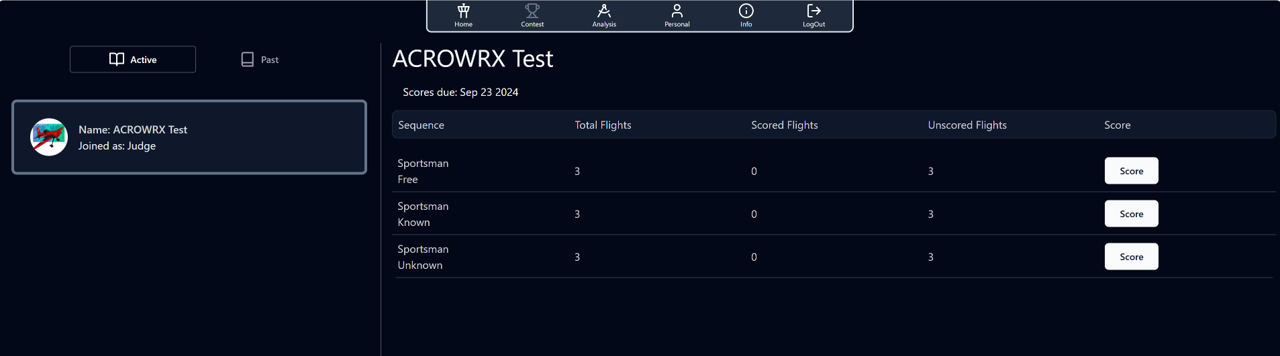
On your Contest page, select the contest. A table lists flights grouped by category and program. Click Score to open the judging workspace.
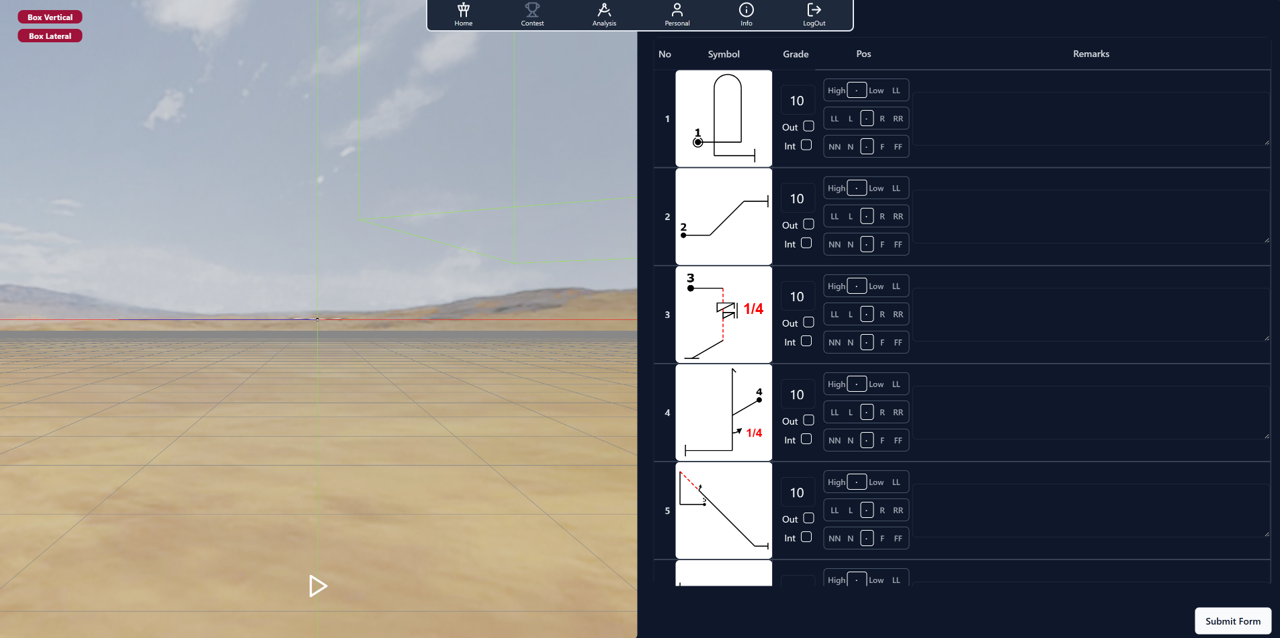
The judging workspace
Unlike other flights in ACROWRX, a contest flight for scoring is viewed from the judge's perspective only, with Form A beside it.
| Screen size | Layout |
|---|---|
| Large | Judge view (3D) and Form A side by side, resizable |
| Small | Tabs: Judge and Form A; submit button next to the tab bar |
Form A field definitions (grade, Out, Int, box marks, remarks) are described on the ACROWRX Form A page.
Step-by-step: scoring a flight
Step 1 — Watch the flight
- Press Play or Space to start playback at least once before submitting.
- Use the timeline and judge view controls. See Judge View for camera and playback shortcuts.
- Scrub to any figure you want to inspect again.
⚠️ - WARNING
ACROWRX blocks submit until playback has started at least once.
Step 2 — Fill Form A
For each figure row, set:
| Column | Meaning |
|---|---|
| Grade | 0.0–10.0 in 0.5 steps, HZ (hard zero), or A (absent) |
| Out | Pilot flew outside the box |
| Int | Interruption |
| Position | Lateral: LL · L · · · R · RR |
| Near/Far | NN · N · · · F · FF |
| Vertical | High · · · Low · LL |
| Remarks | Written comments |
Type grades directly or use keyboard shortcuts (see Form A keyboard shortcuts).
You can score manually, with voice, or both.
Step 3 — Voice remarks and AI assistant (optional)
Each Remarks cell has a toolbar:
Suggested 7.5          Language ▼  Score  Review    ← pilot placed figure markers
Suggested 7.5          Language ▼  Score  Voice     ← no figure markers
Language menu
Choose Auto, English, French, Italian, Spanish, or Portuguese. Auto lets the transcription service detect language.
Review mode (recommended when markers exist)
Available when the pilot placed figure-start markers on the flight timeline.
- Click Review — plays only that figure and starts recording your microphone.
- Speak your remark (grade, Out, box position, figure critique — in any order).
- Click Stop — figure animation stops; recording continues until you press Stop again so you can comment after the figure ends.
- ACROWRX transcribes and runs the AI in the background. Move to the next figure immediately — no waiting.
Voice mode (no figure markers)
- Click Voice — records without figure playback.
- Click Stop when finished.
- Same transcription and AI pipeline as Review.
What happens automatically
When processing finishes:
- Grade, Out, Int, box marks, and remarks are applied to Form A automatically (no blocking popup).
- A confirmation toast appears:
Figure N voice score applied. - Suggested appears on the left of the toolbar (e.g.
Suggested 7.5orSuggested HZ). - The Score button becomes available for later review.
You can score the next figure while the AI still processes the previous one.
Step 4 — Review what the AI did (recommended)
Click Suggested 7.5 or Score to open Review voice score:
| Section | Content |
|---|---|
| Transcript | Raw speech-to-text |
| Grade / Out / Int / Position / Near / Vertical | Extracted fields with confidence % |
| IAC Rule Book 2026 suggestion | Downgrades (issue, your phrase, rule reference, points), suggested grade |
| Remarks | Cleaned descriptive text in your spoken language |
Dialog actions:
- Close — dismiss (score was already applied)
- Re-apply score — write the parsed values again if you edited the form manually
Audit IAC reasoning here before you submit the whole form — especially for HZ or close calls.
Step 5 — Submit Form A
- Click Submit Form (bottom of Form A, or icon next to tabs on mobile).
- Confirm warnings if shown:
- Every figure still 10 — change at least one grade first.
- Some figures still 10 — confirm you intentionally left them perfect.
- After success, the form locks for that flight — you cannot edit again.
- A program picker opens to choose the next flight or program.
⚠️ - WARNING
After submitting Form A, you cannot change grades, marks, or remarks for that flight. Review voice AI results and your entries before submit.
AI scoring assistant — how it works
The assistant is not a chatbot. After each voice recording, ACROWRX runs two cloud steps:
- Transcription (Whisper) — Groq first, OpenAI fallback; up to 2 minutes per remark.
- Structured parse (LLM) — extracts grade, Out, Int, box marks, and remarks.
- IAC suggestion (LLM) — maps critique to IAC Contest Rules 2026 Rev C (Chapters 26–28) and suggests a grade.
What gets auto-applied
| Field | Applied when |
|---|---|
| Spoken grade, Out, Int, box marks | Model confidence ≥ 55% |
| IAC suggested grade | No spoken grade detected and suggestion confidence ≥ 50% |
| Remarks | Descriptive critique in your spoken language (score phrases stripped) |
If you say “seven five” or “HZ”, your spoken grade wins over the IAC math.
IAC downgrade rules (summary)
- Angular errors under 90° → numeric downgrade (0.5 pt per 2.5°), not Hard Zero.
- Hard Zero (HZ) only for rule-book triggers (e.g. 90°+ deviation).
- Qualitative geometry without stated angles (tight, shallow, steep, positive, negative, etc.) → 0.5 pt minimum perceptible error.
- Box position marks only for explicit Form A wording — not figure geometry.
Position marks vs figure language
The AI is designed not to treat descriptive words as box marks:
| Stays in remarks (NOT box marks) | Valid box marks |
|---|---|
| wings high, top of the loop | way to the left, far right |
| too low on the line, left snap | close to the judge |
| rolled to the right, shallow | a little high in the box, LL/RR/NN/FF |
When in doubt, position sliders are left unchanged.
If parsing fails
- An error toast appears.
- The raw transcript is appended to remarks.
- No grade or marker changes are applied.
Grading tips with voice + AI
- Structure your speech — many judges use: [figure critique] then [score tail]:
“Top of the loop too tight. Seven five, way to the left, close to the judge.” - Say the grade explicitly if you want it to override IAC math.
- Omit the grade if you want the IAC suggestion from critique alone.
- Use Review when markers exist — syncs playback to each figure.
- Open Score review before submit on questionable figures.
- Edit manually anytime — voice is an assistant, not a lock.
- One figure per recording — each Stop processes that figure's row.
Keyboard shortcuts (grade field focused)
With the cursor in a figure grade input:
| Key | Action |
|---|---|
| + or = | Increase grade by 0.5 |
| - | Decrease grade by 0.5 |
| L / R | Lateral position slider |
| N / F | Near/far slider |
| ↑ / ↓ | Vertical (high/low) slider |
| O | Toggle Out |
| Backspace / Delete | Clear grade field |
After submitting
- Your score is saved to the contest.
- Pick the next flight from Judge Other Flights or return to Contest.
- Contest managers may view/edit your score from Contest Manager — you cannot edit after submit.
Quick checklist
- [ ] Opened correct program and pilot flight
- [ ] Watched flight at least once (Play/Space)
- [ ] Graded each figure (voice and/or manual)
- [ ] Reviewed Score dialog on questionable figures
- [ ] Confirmed no unintended box marks from geometry wording
- [ ] Submitted Form A and selected next flight