Appearance
ACROWRX - Joining Contest
📢 - INFO
This page provides basic information on how to join an ACROWRX Online Contest.
Contest Platform
Use the top navigation menu to access the ACROWRX Contest Platform. There, you will find Active and Past Contests. You will only be able to join Active Contests.

Types of Contests
There are two types of contests: public and private. You will only be able to join public contests or private contests to which you have been invited.
Team mock competitions are private contests: they show up here once your team's coach has registered you.
📌 - ORGANIZE YOUR OWN
Want to run a contest? Use Create Contest on the Contest page, just below the Active / Past switch. Any user with an ACROWRX subscription can create one; see Contest Manager.
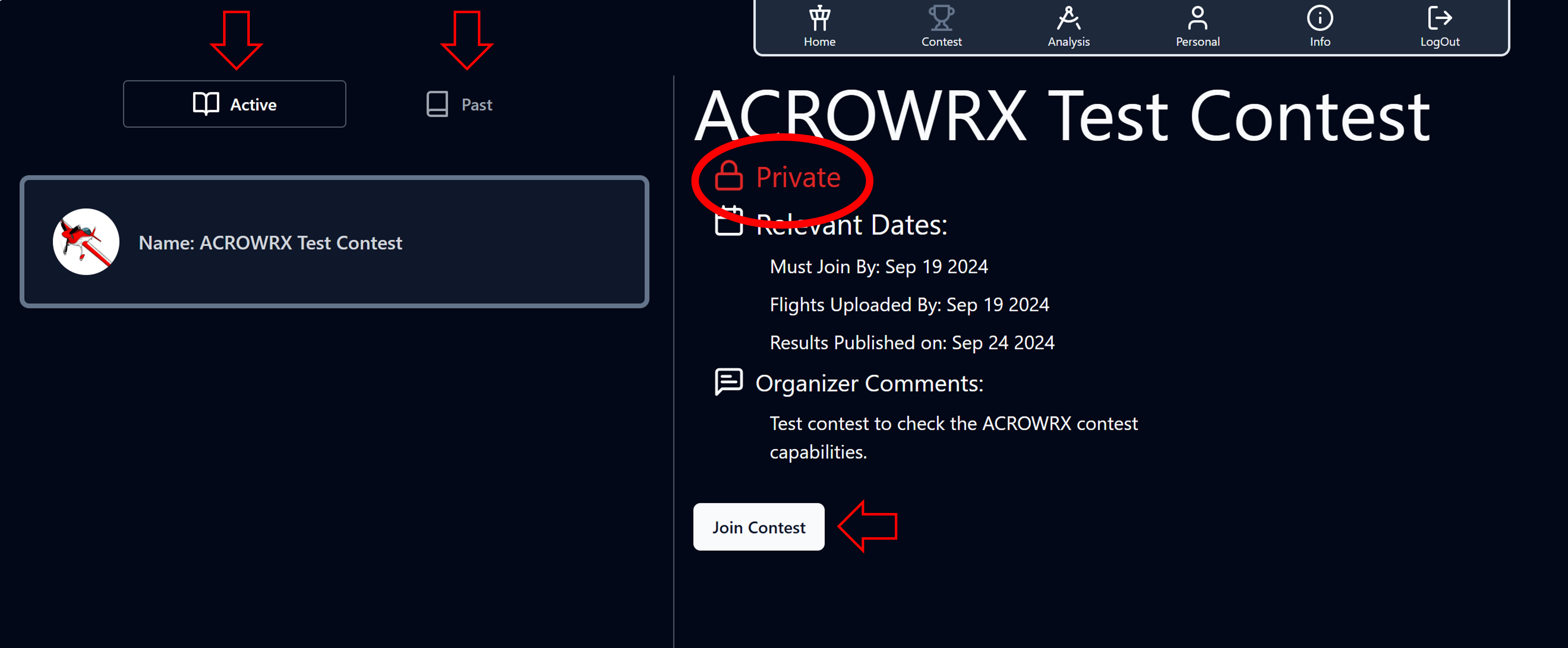
The contest page
Every contest opens with the same layout, whether you've joined it or not:
- Top box: the contest type (Public, Private or Team mock competition), your role once you take part, the organizer's description, and the buttons for what you can do (Join Contest, or Edit Contest if you organize it). Contests that aren't live yet are marked Draft and only their organizer sees them.
- Key dates: join, upload and judging deadlines as a timeline, with how many days are left and the next deadline highlighted.
- Categories and programs: each category with its programs. Click a program to view its sequence before you join. The Unknown stays locked until you join (or until results are published). Free programs have nothing to show, since each pilot flies their own sequence.
Pilots also get a line in the top box with their category, box location and registration date, and their flights table below the panels. Judges see the flights to score. Once judging ends, the page says results are coming, then shows the results when the organizer publishes them.
If you fly and judge the same contest, a Pilot | Judge switch under the contest name changes between the two views. It opens on Pilot.
Joining a Contest
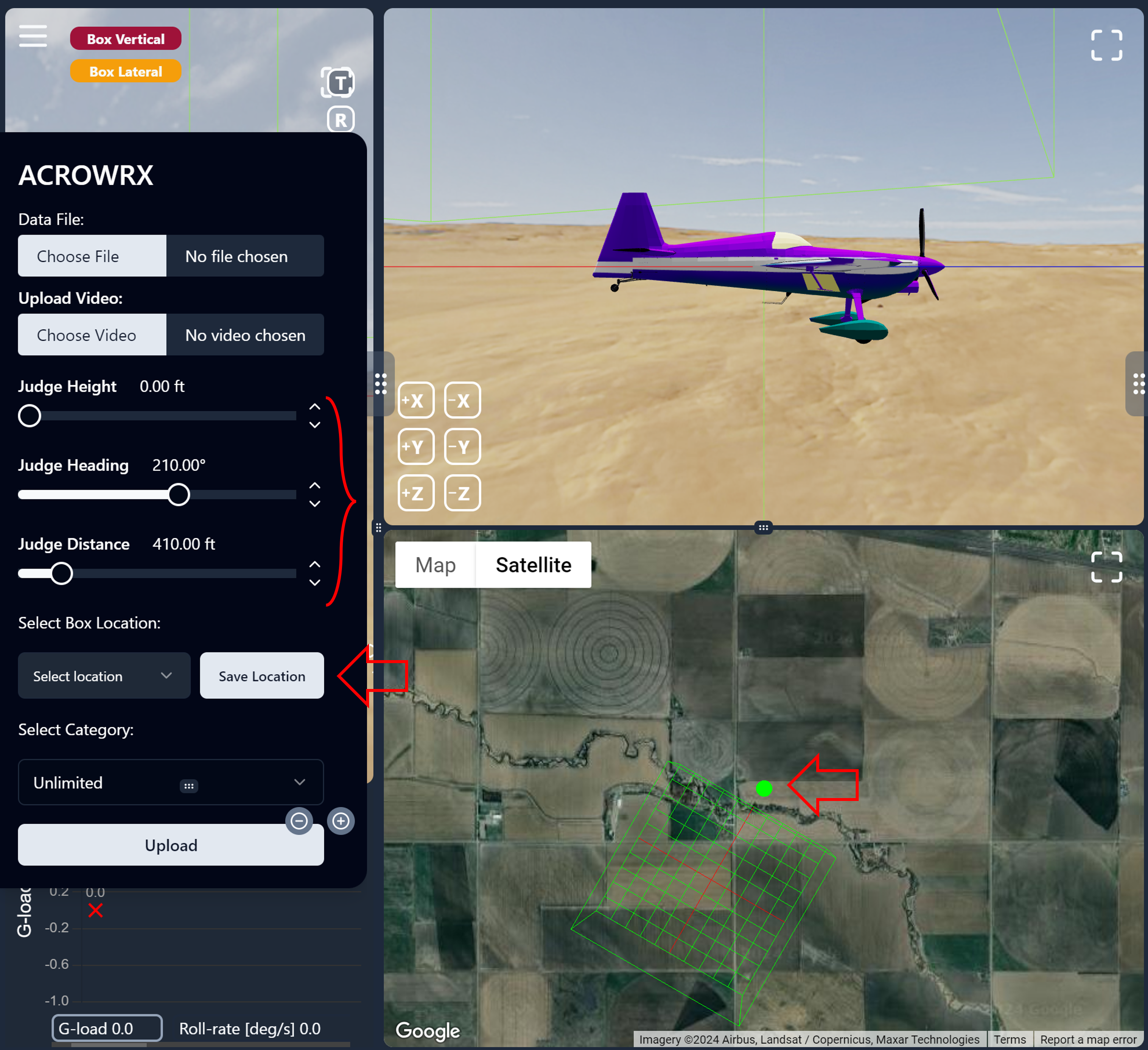
Before joining a contest, you need to have a saved box location. This box location will be used for all your contest flights. If you need a different one later, use Reset box location in the top box of the contest: your join time then moves to now, and only flights flown after that count. To create and save a box location, go to the Analysis page, set up a box (judge location, height, heading, and distance), and save that location with a unique name.
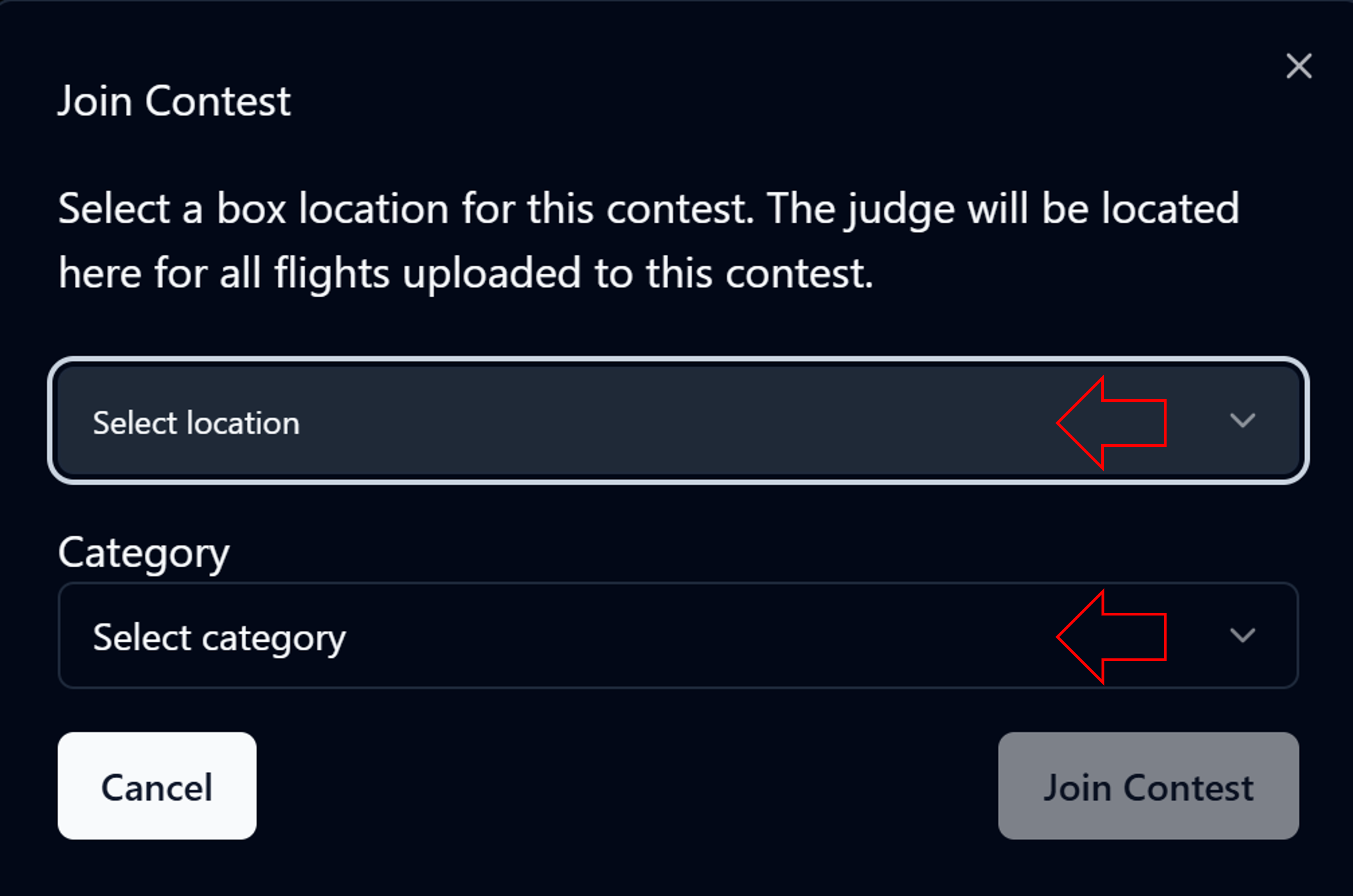
With a box location set, you will be able to join a contest. Click Join Contest in the top box, then pick the category you intend to fly and your box location.
Related pages
- Uploading Contest Flights
- Scoring Contest Flights — judge workflow and AI scoring assistant
- Contest Manager — for contest organizers