Appearance
ACROWRX - Time History
📢 - INFO
This page provides detailed information about how to use the time history chart in ACROWRX.
Time History
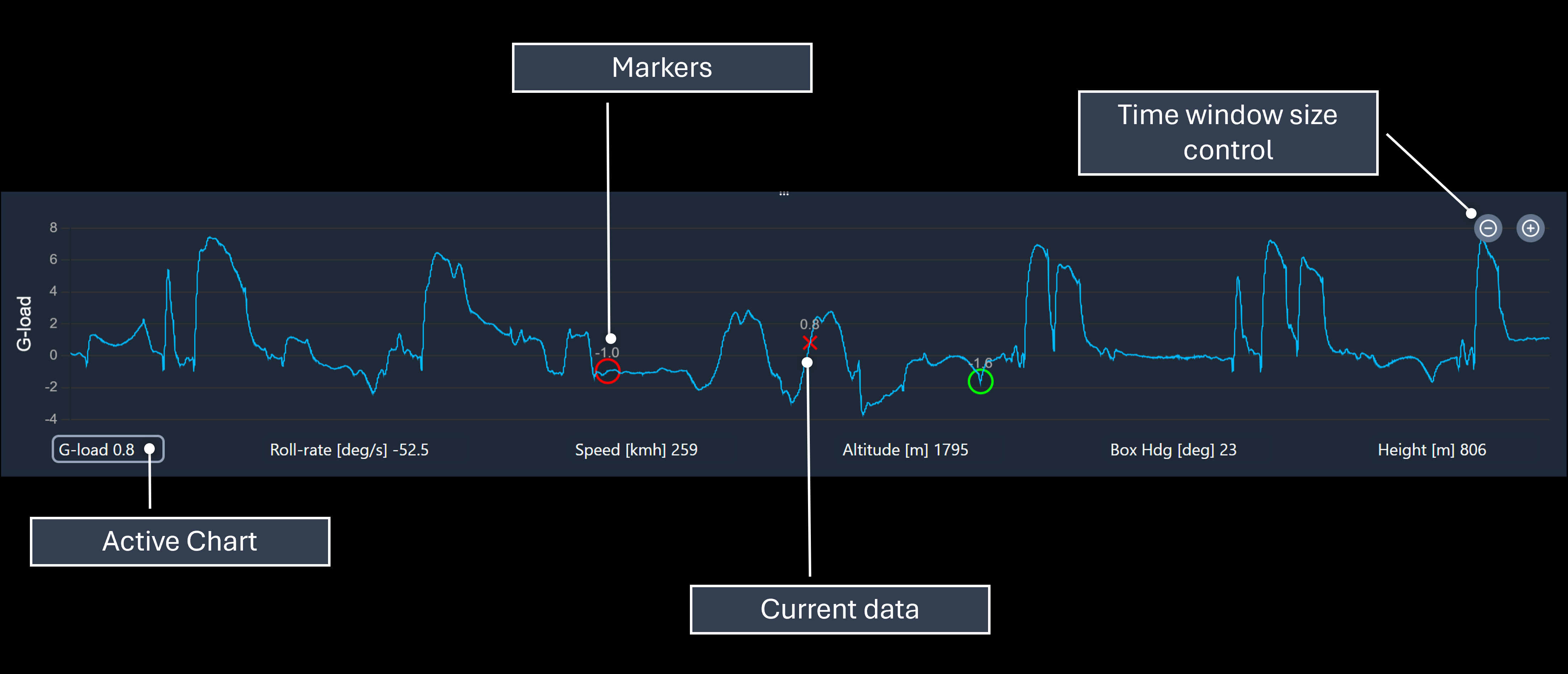
Time history shows a graphical representation of your flight over time. Engineers will love it, and pilots will learn to love it.
Time history is a powerful tool that helps you to:
- Find events during your flight - for instance, a double wing dip maneuver always has a very distinctive shape along the roll rate time history. The same applies for arcs, snaps, etc.
- Check how you are actually performing the maneuver - for instance, in a rolling turn, looking at the altitude or height time history allows you to see how much altitude variation you have, or roll rate time history will show you how steady your roll rate is.
 Data Channels
The time history can display a wide range of data channels. Each chart panel has a data channel selector dropdown that lets you choose which channel to display. Click the dropdown arrow to open a scrollable list of all available channels.
Primary Flight Channels
| Channel | Unit | Description |
|---|---|---|
| G-load | g | Load factor |
| Roll rate | deg/s | Roll rate |
| Speed | km/h, mph, or knots | Ground speed (unit from right menu) |
| Altitude | m or ft | Altitude AMSL |
| Box Heading | deg | Heading relative to the box (0° = positive X-axis) |
| Height | m or ft | Height above judge (AGL) |
Additional Channels
| Channel | Unit | Description |
|---|---|---|
| Pitch rate | deg/s | Pitch rate |
| Yaw rate | deg/s | Yaw rate |
| Long. Accel | g | Longitudinal acceleration |
| Lat. Accel | g | Lateral acceleration |
| Yaw | deg | Yaw angle |
| Pitch | deg | Pitch angle |
| Roll | deg | Roll angle |
| Loop Radius | m | Computed loop radius (R = V²/a) |
Diagnostic Channels
| Channel | Description |
|---|---|
| GNSS1 / GNSS2 #Sat | Satellite count for each GNSS receiver |
| GNSS1 / GNSS2 Fix | Fix quality for each GNSS receiver |
| Yaw / Pitch / Roll Uncert | Attitude uncertainty estimates |
| Vel / Pos Uncert | Velocity and position uncertainty estimates |
| ADC0 – ADC7 | Analog-to-digital converter channels (control position sensors, etc.) |
 Chart Window Size
Use the and  buttons on the chart to zoom the time window in or out. A larger window shows more of the flight at once, while a smaller window zooms in for finer detail. The playback cursor remains centered as you adjust the window size.
Playback Cursor
A vertical cursor line moves across the chart in sync with the 3D views (Judge, Chase, Map). The airplane's current position in the time history is always visible. You can click on the chart to jump to any point in the flight.
Markers
Markers that you drop (using keyboard keys 0–9) are also marked in the time history as vertical indicator lines. The last marker dropped can be moved with the mouse (click and drag on the chart). Use C to clear all markers.