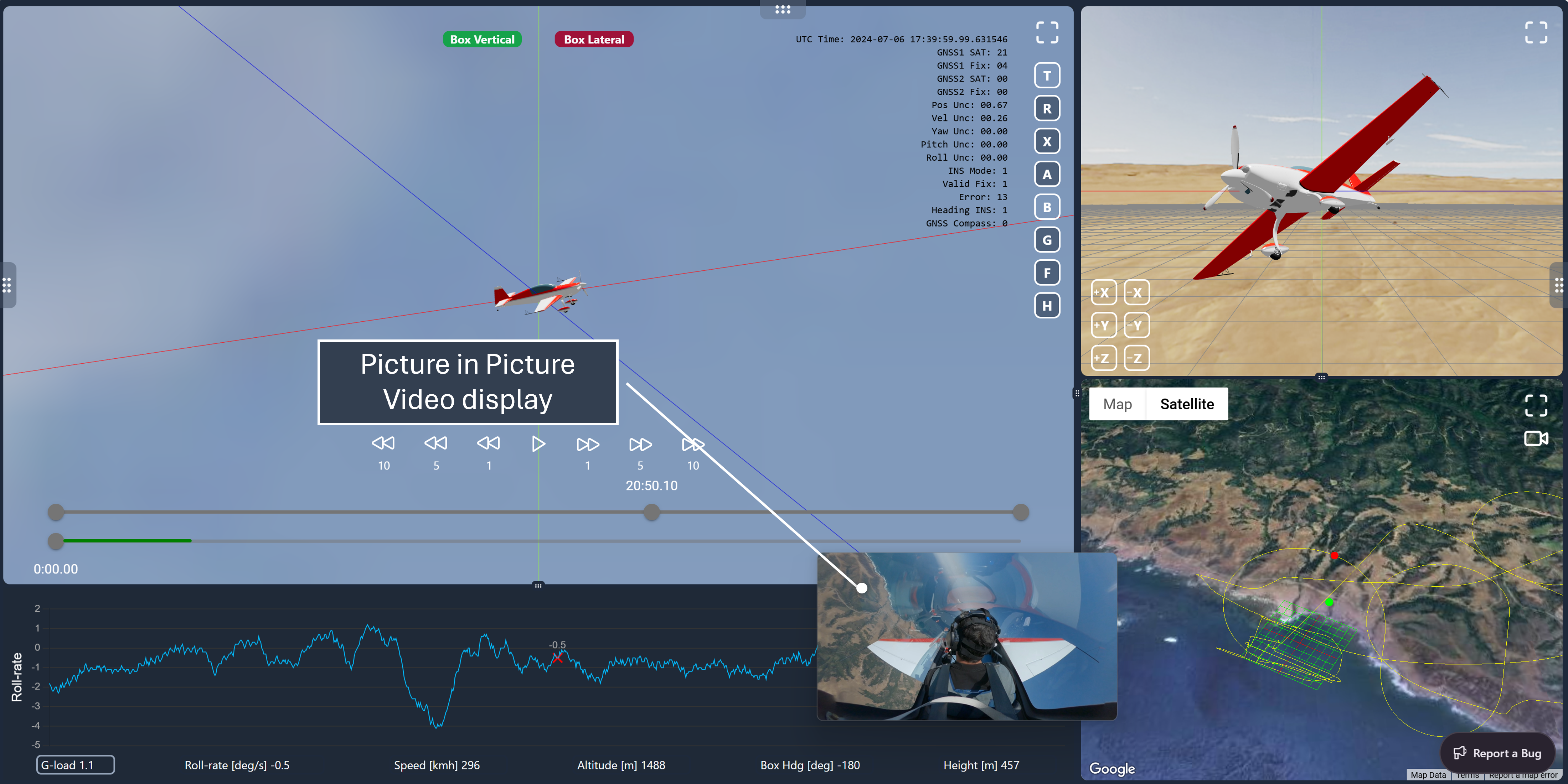
Appearance
ACROWRX - Map
📢 - INFO
This page provides detailed information about how to use the Map in ACROWRX.
Map
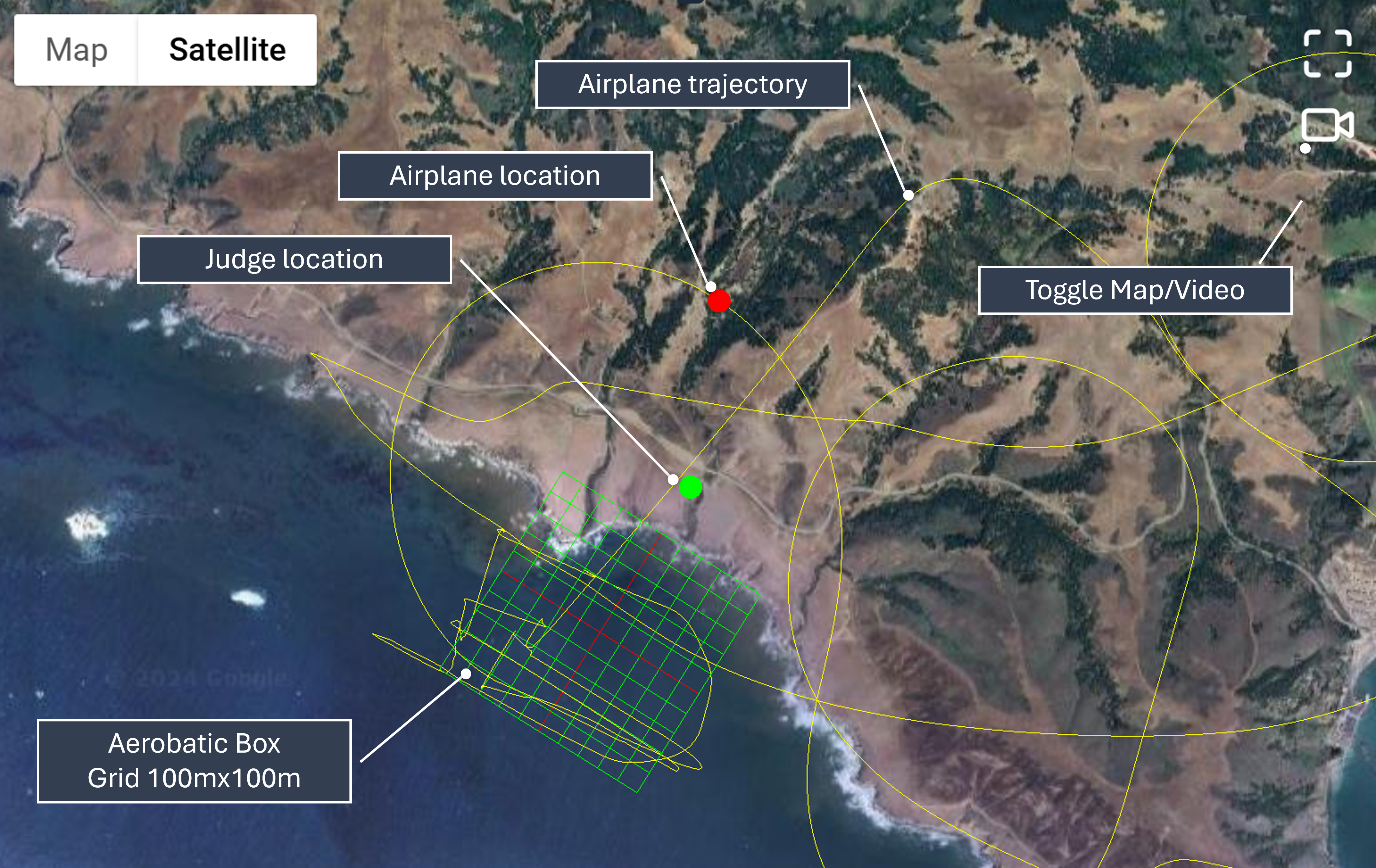
The Map is another powerful tool used in ACROWRX. The primary purpose of the Map is to visualize how you are presenting your maneuver within the aerobatic box. This image shows the main elements of the MAP.
Mouse Controls
Like all other windows and views in ACROWRX, the Map has specific mouse controls:
- CTRL + CLICK (or CMD + CLICK on Mac) - Set the judge's location
- CLICK AND DRAG - Pan
- SCROLL WHEEL - Zoom
- SHIFT + CLICK AND DRAG - Rotate view
 2D or 3D
The keyboard key F or the button on the map controls toggles between the 2D and 3D representations of the airplane, airplane trajectory, and box over the map.
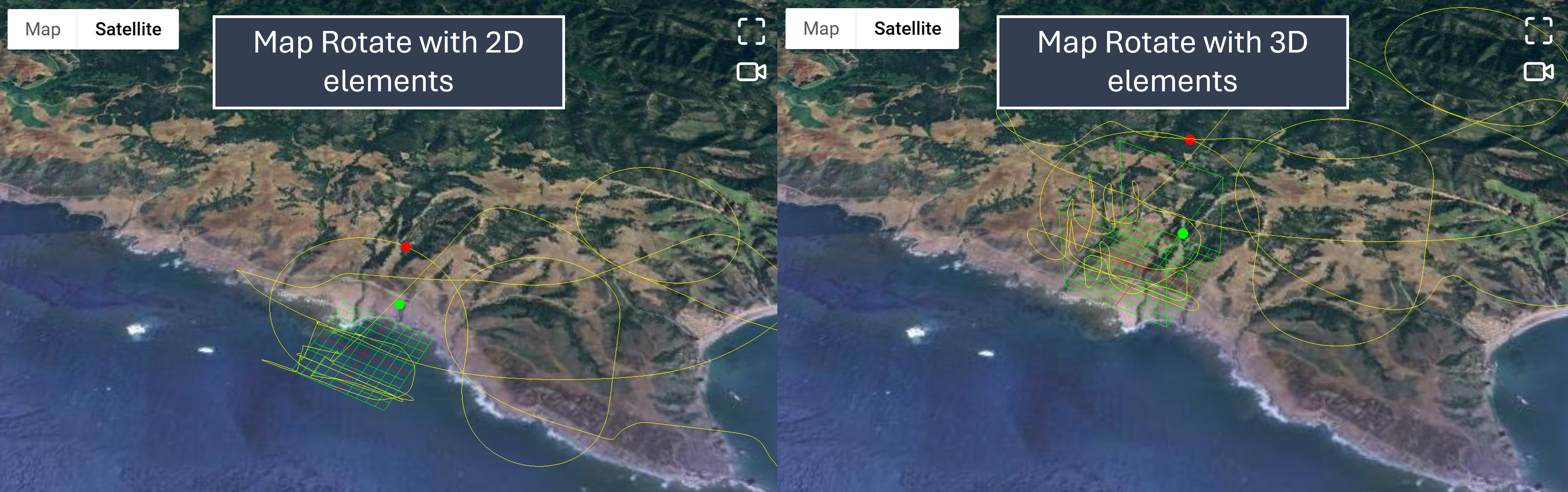
- 2D elements are great for visualizing your maneuver's location and the trajectory of the airplane in relation to the box.
- 3D elements are great for visualizing the shape of some maneuvers, like loops and other arcs.
📌 - TIP
Although the rules establish that the airplane's position in relation to the box should be judged based on heading, in some situations, the trajectory is what judges can see.
📌 - TIP
Rolling turns are best visualized on the map. Variations in heading are easily perceived on 2D maps.
Trajectory Cropping
The trajectory displayed on the map is controlled by the crop markers on the timeline slider at the bottom of the screen. By dragging the left and right crop brackets, you can limit which portion of the flight is shown on the map. Only the trajectory between the two crop markers will be drawn.
This is useful for isolating a single maneuver or a specific segment of the flight, making it easier to analyze its position within the aerobatic box without visual clutter from the rest of the flight.
📌 - TIP
Cropping the trajectory on the map is the same crop used when uploading a flight — it defines the portion of the flight you want to keep. See Cropping Your Flight for more details.
Map Controls
Several on-screen controls are available on the map:
 Grid
Grid
The map grid can be toggled using the keyboard key G or the grid button on the map.
 Map Type
A map type button lets you switch between roadmap and satellite  imagery for the map background.
 Measuring Tape
A ruler tool enables click-based distance measurement directly on the map. Click to place measurement points and see the distance between them. This is useful for measuring box dimensions, distances from the judge, or maneuver sizes.
Trace Size Slider
A vertical slider on the side of the map controls the length of the trailing trajectory line. Slide up for a longer trail, slide down for a shorter one.
Map Heading Control
A circular heading dial in the corner of the map lets you rotate the map orientation. You can drag the knob or type a specific heading value (0–360°). A toggle switches between true and magnetic heading. This is useful for orienting the map to match the aerobatic box axis or the pilot's perspective.
 Video and Map
Video and map normally share the same screen position in ACROWRX. You can toggle between them using the keyboard key M or the / icon in the upper right corner of the map/video window.
📌 - TIP
One way to decouple the video and map is to use the Picture-in-Picture feature that some browsers offer. Right-click on the video and select the Picture-in-Picture option. The video will pop up in another window, allowing you to return the ACROWRX window to display the map.