Appearance
ACROWRX - Markers
📢 - INFO
This page provides detailed information about how to use markers in ACROWRX.
Markers
Markers are a powerful tool for flight analysis in ACROWRX. With markers, you can easily visualize how you are placing your roll elements in your lines.
- To add markers to your flight, use the number keys on your keyboard 0 to 9.
- To clear all the markers from your flight, use the keyboard key C.
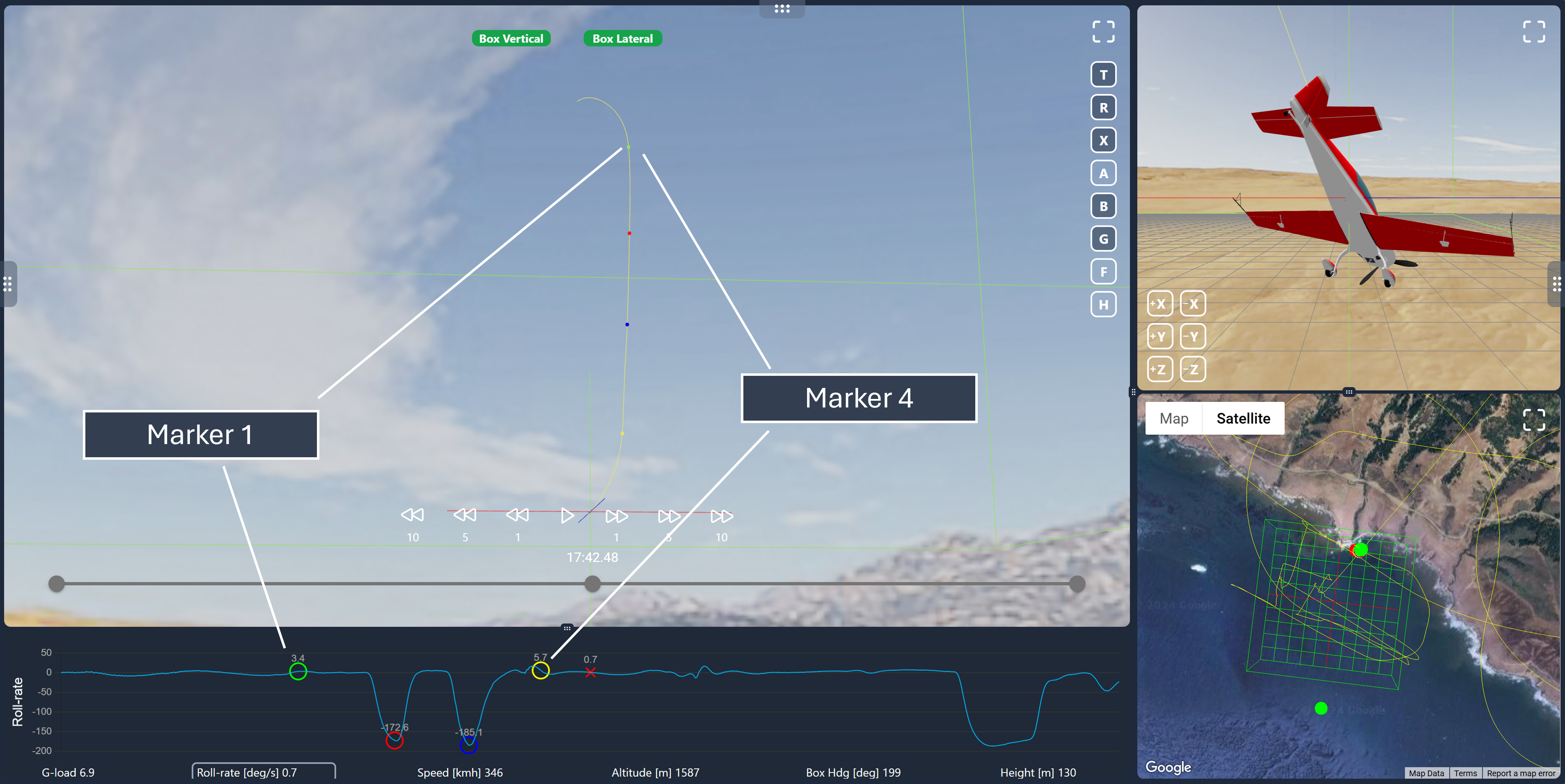
As shown in this image, markers were applied at the beginning and ending points of a vertical line and when the aircraft reached maximum roll rate (middle of the roll) in a 2 of 4 point roll. By visual inspection, it is clear that these rolls were properly placed in this line.
Markers in 3D Views
When you drop a marker, it appears as a labeled indicator in the Judge View and Chase View. Each marker shows its number and is positioned at the airplane's location at the time it was placed. The most recently placed marker is highlighted as the active indicator, making it easy to identify.
Three-marker circumcircle
 After you have placed at least three markers with number keys 0–9, you can turn on the circumcircle tool from the Judge View on-screen button cluster (circle outline icon, same as in the app — neutral until toggled on, then it uses an orange highlight; directly under Clear all markers). It draws an orange circle in the scene through three distinct recent marker positions (see tooltips if two drops land on the same frame).
The same circle is shown in Judge View, Chase View, and on the Map while the tool is active. On Judge and Chase, the circle always passes through your markers at their true 3D positions (matching the marker spheres).
On the Map, use F or the 2D / 3D trajectory control so the circle matches the trajectory: in 2D, altitudes are flattened like the map trail; in 3D, full altitude is used. See Map: 2D or 3D.
📌 - TIP
Toggle the circle off with the same button, or clear markers with C / Clear all markers (which also clears the circle overlay).
Two-marker extended line
 After two or more markers with keys 0–9, you can enable the extended line tool from the button cluster (slash icon, same as in the app — neutral until toggled on, then orange highlight; below the circumcircle button). It draws a straight orange line through two distinct recent marker positions, extended 2000 m beyond each end along that line.
The same line appears on Judge View, Chase View, and the Map. Map altitude follows the 2D / 3D trajectory toggle like the circumcircle tool.
📌 - TIP
Clear markers (C) turns this overlay off along with the circumcircle tool.
Markers on the Time History
Markers are also displayed as vertical lines on the Time History chart, allowing you to correlate 3D positions with the data timeline. The last marker placed can be repositioned by clicking and dragging it along the chart.
📌 - TIP
Use the key H—either on your keyboard or on the keyboard button cluster in your Analysis Window—to move the judge's head and view the entire figure.
📌 - TIP
You can move the last marker placed by clicking and dragging it over the chart.