Appearance
ACROWRX - Quick Start
📢 - INFO
Welcome to ACROWRX! This page provides basic information about how to use ACROWRX.
Getting into ACROWRX
You have probably already completed the first step to get into ACROWRX, you are registered! You also provided some personal information, such as your name, country of origin, and whether you are a qualified judge or not. At this point, it is important to let you know that if you want to edit this information, you can always go to your Personal Profile page. You can access your Personal Profile page using the TopNav menu located at the top of your screen.
The TopNav menu contains links to the following pages:
 Home — where you can see a table of public shared flights
 Contest — contest platform for flight scoring and judging
 Analysis — where you can analyze your own flights — only available for subscribed users
 Formation — formation flight analysis with multi-airplane support — requires a Formation subscription
 Personal — where you can see and edit your flights, sequences, box locations, KML overlays, edit personal information and subscribe to ACROWRX Pilot
- PaintShop — design custom airplane liveries with brush, line, fill, decal, and text tools — available to all signed-in users; see the PaintShop page for the full guide
 Info — this documentation
 LogOut — sign out of your account
Do I need a subscription?
ACROWRX has three main modules:
- Analysis — Analyze your own solo flights using data acquired by one of the approved data units for ACROWRX. This feature requires an Analysis subscription.
- Judging — Watch, judge, and score someone else's flights. This feature is free, and anyone who signs up has all the privileges.
- Formation — Analyze formation flights with multiple airplanes simultaneously, including synchronized 3D visualization, strip charts for all aircraft, and leader/chase camera views. This requires a Formation subscription.
Basics about Data Units
ACROWRX invests a lot of time and effort to develop and test data units capable of precisely tracking aerobatic airplanes. Currently, two data units are approved:
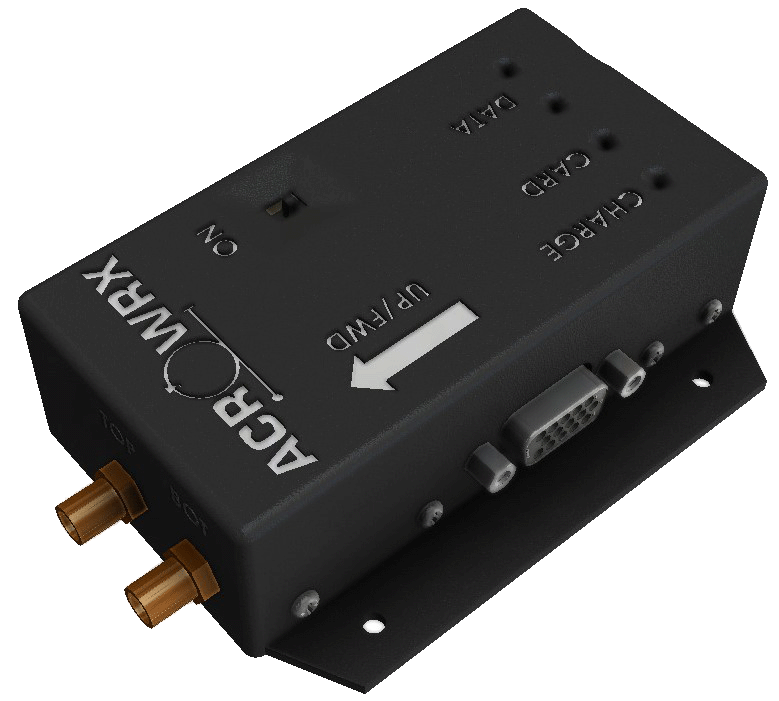
- ACROWRX data unit - Developed by ACROWRX with high-grade inertial sensors, it represents the ultimate solution for precision and performance. It has a dual GNSS receiver, external GNSS antennas, a 100Hz sample rate, input for control position sensors, remote power switch, self-power, and real-time data stream via Wi-Fi. All the inertial sensors are calibrated individually, including temperature compensation. Its performance was validated using comparisons with onboard and ground video of unlimited aerobatic airplanes flying at an international competition level.
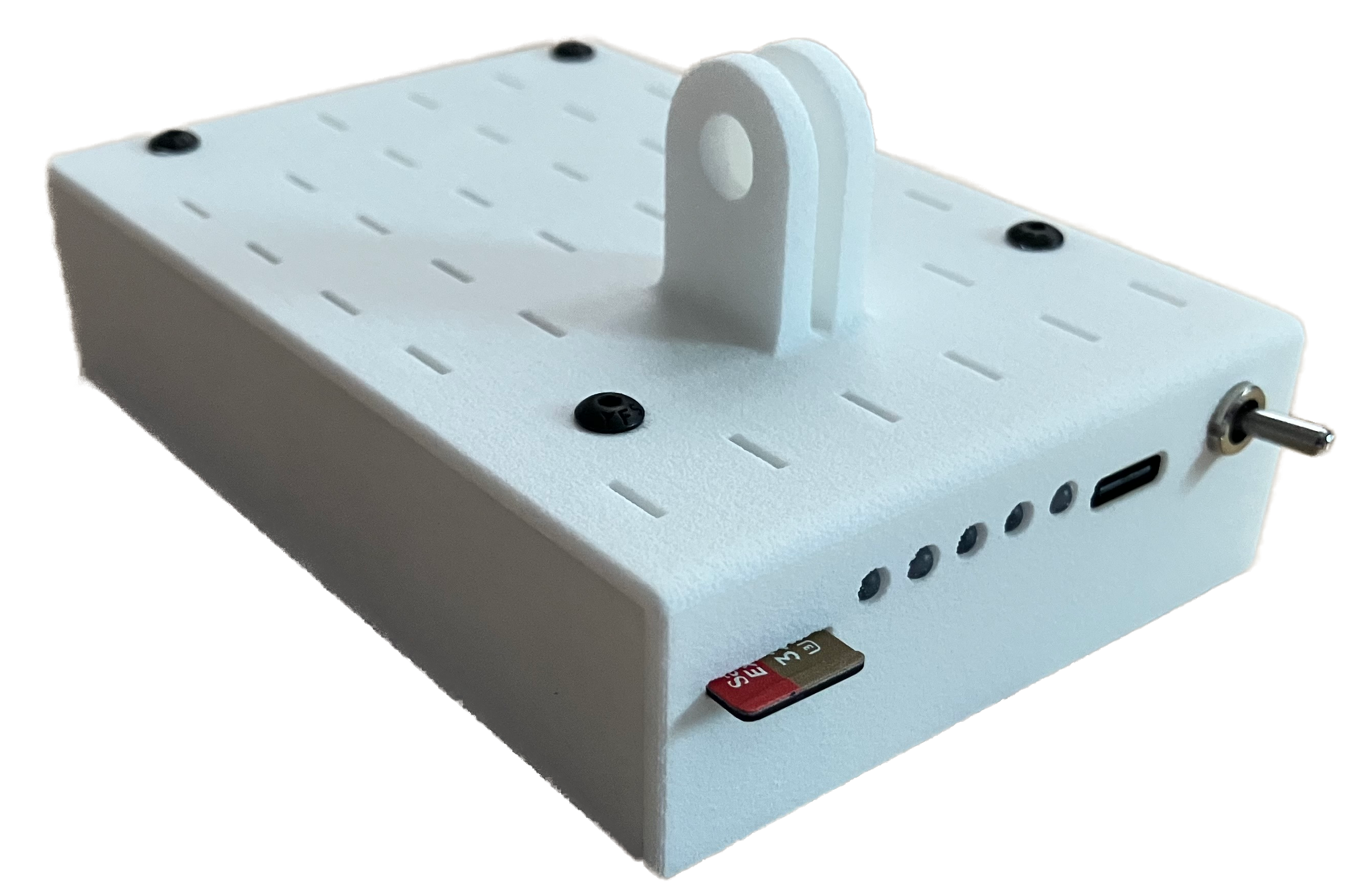
- OnFlight data unit - OnFlight was developed by Bolder Flight Systems, a leading company in the development of high-quality flight control and data acquisition systems. It uses industrial-grade inertial sensors, which reduce the acquisition cost significantly, but still deliver high data quality. The sample rate is limited to 50Hz data stream, has no external antennas, and is self-powered. ACROWRX tested it on unlimited aerobatic airplanes executing competition and airshow maneuvers and compared the performance with onboard cameras.
OnFlight for ACROWRX can be acquired at: https://bolderflight.com/acrowrx/
Flight Tables
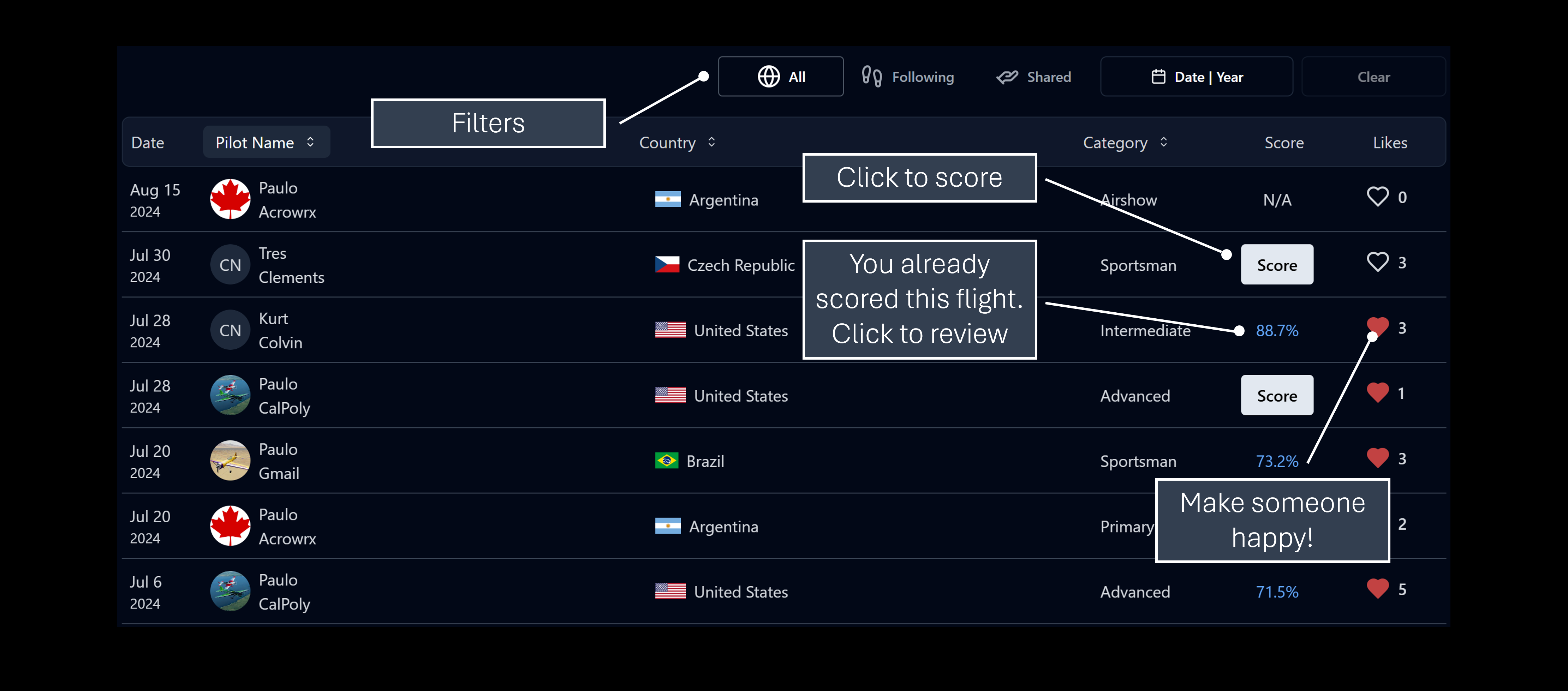
Flight Tables are the backbone of ACROWRX, where you will find either your uploaded flights or someone else's flights. You will find Flight Tables on the Home page and in your Personal Profile page. On top of these tables, you will find some filters to help you navigate through the tables.
📌 - TIP
When you use ACROWRX to analyze a flight, all the data and calculations are stored on your computer; nothing is shared with ACROWRX servers. It is your option to upload your flight to our servers - when they will show up in the Flight Tables. Even then, it will be your option to keep it private or make it public. Click here to learn how to share private flights with specific users of your choice.
Analysis Window
The Analysis Window is the backbone of the ACROWRX system. For subscribed users, it will allow you to upload a flight and a video, set up judge location, set up which airplane model to use in the visualization, upload your flight, and much more. For non-subscribed users, it will still give you all the analysis possibilities, but only for flights uploaded as public to the ACROWRX servers.
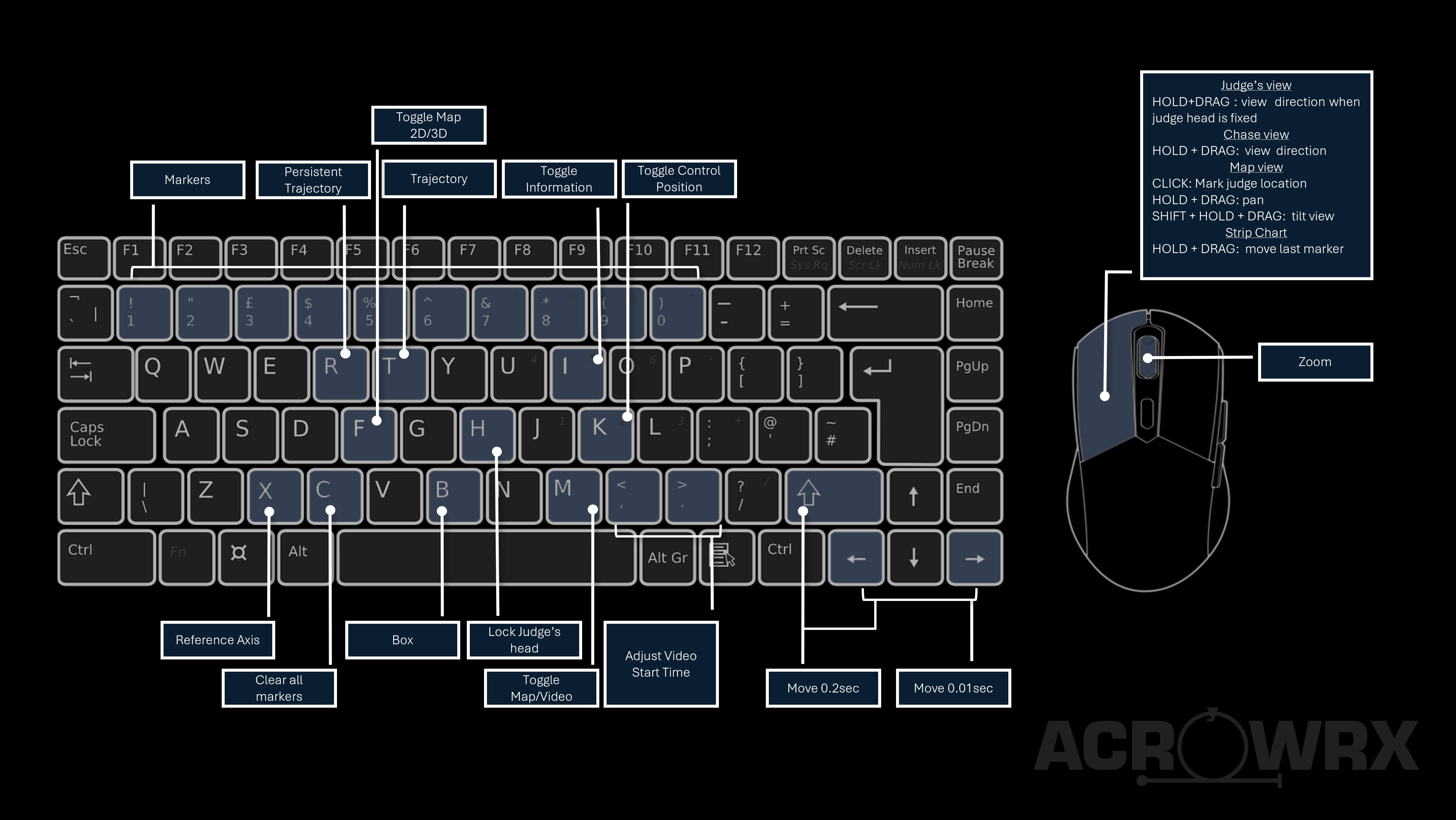
The Analysis Window has a variety of commands that can be used to manipulate the visualization, and due to space restrictions on your screen, some of them are only available through keyboard shortcuts or mouse actions. This diagram shows all these shortcuts.
Key Keyboard Shortcuts
| Key | Function | Icon |
|---|---|---|
| H | Toggle manual judge head / free-look |  |
| X | Toggle reference axis |  |
| B | Toggle aerobatic box |  |
| I | Toggle additional info overlay |  |
| K | Toggle flight controls / stick position |  |
| P | Toggle protractor (Chase View) |  |
| F | Toggle 2D / 3D display |  |
| G | Toggle map grid |  |
| M | Toggle video / map |  |
| C | Clear all markers |  |
| 0–9 | Drop marker at current position | |
| Space | Play / pause |  |
See the Judge View page for the complete list including playback, video sync, and arrow key shortcuts.
Besides the keyboard shortcuts, the Analysis Window has on-screen controls displayed on the screen. These images describe the main elements of the Analysis Window.
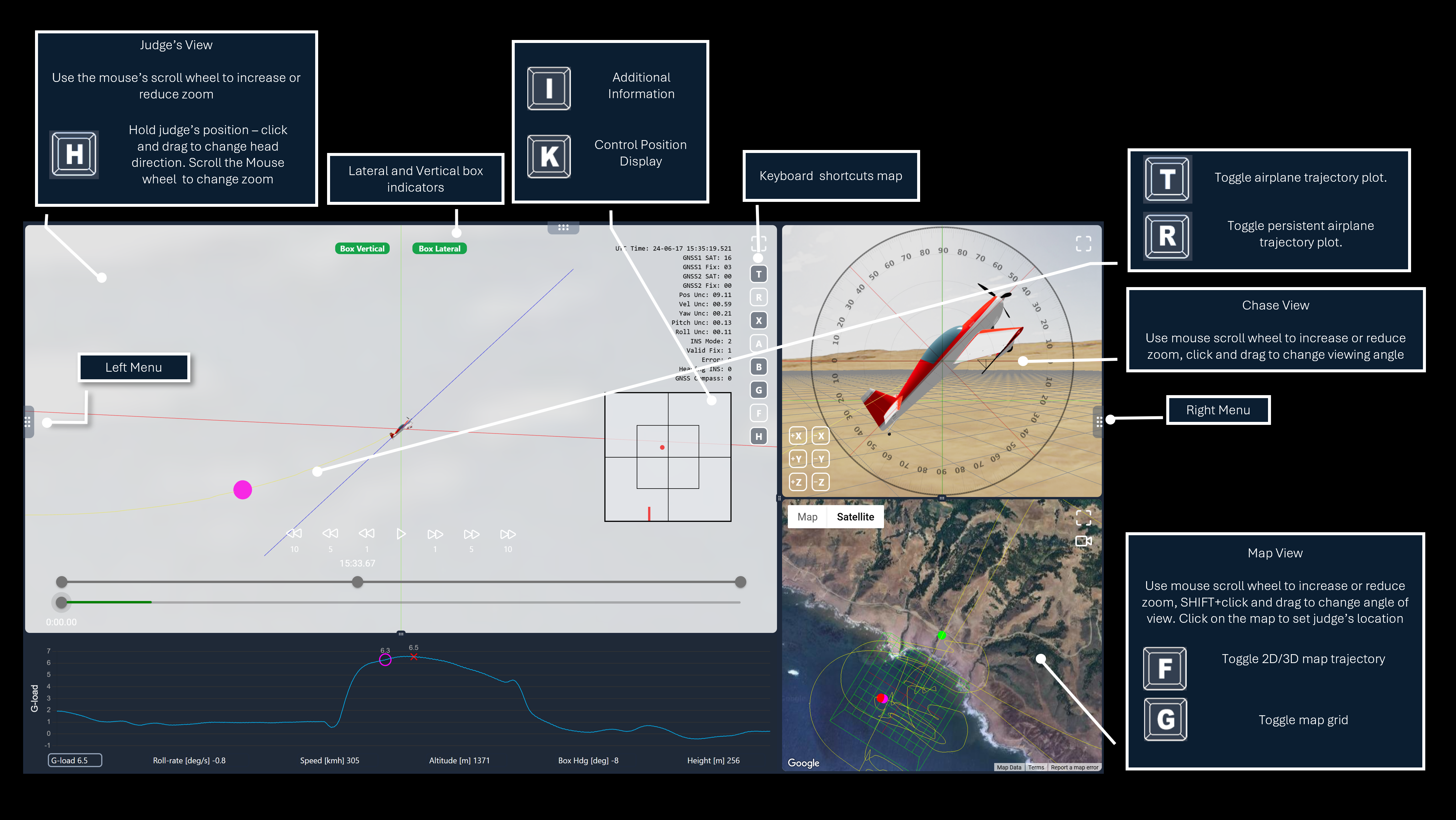
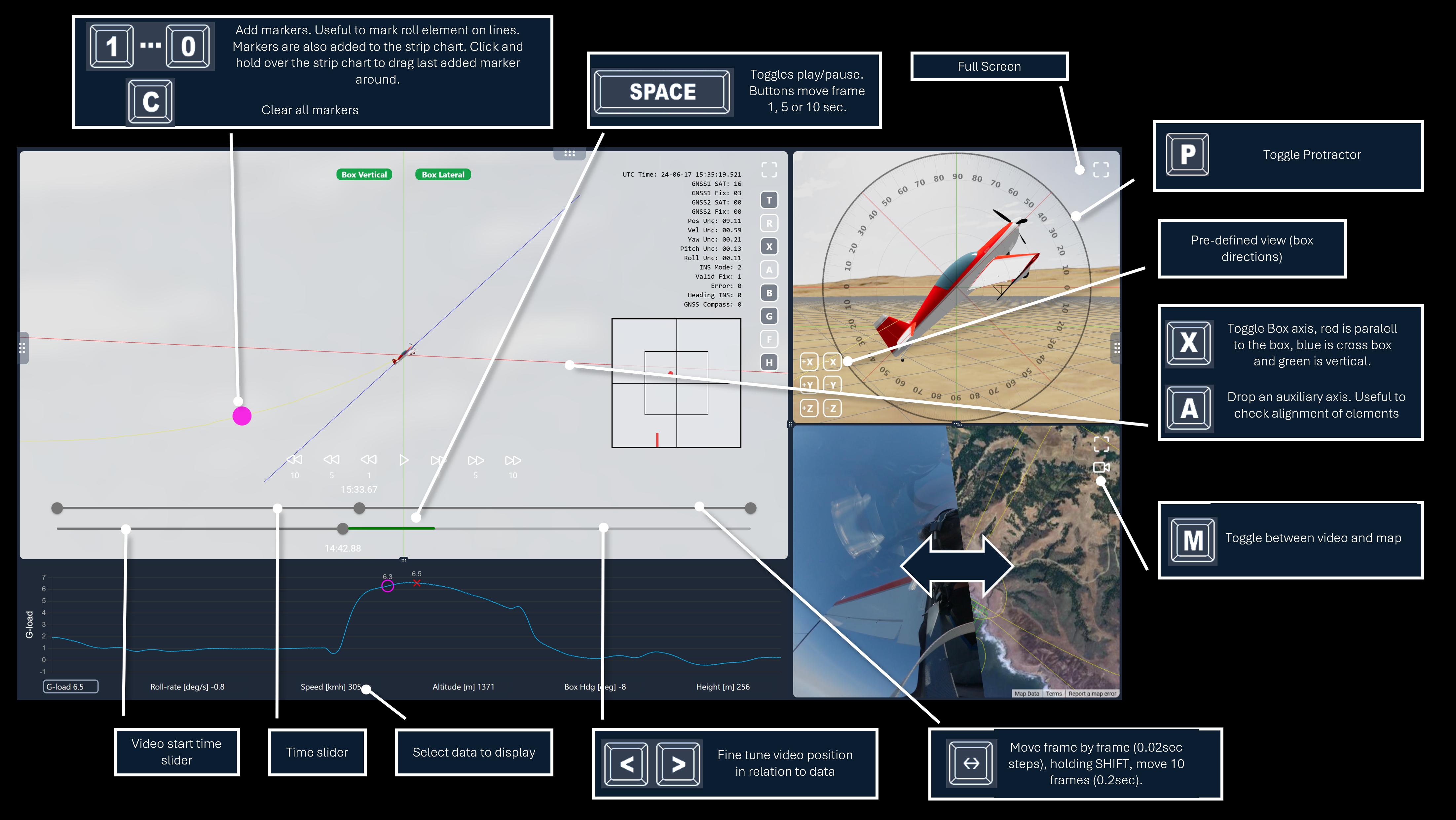
Analysis Window Layout
The desktop Analysis Window is divided into panels:
- Left panel (larger) — The
 Judge View on top with the
  Time History strip chart below.
 - Right panel — The
 Chase View on top with the
  Map View (or video) below. When viewing a saved flight, a
  Form A / Comments overlay may also appear here.
 - Left menu — Slide-out panel for data loading, judge/box setup, upload, and download. See Left & Right Menus.
- Right menu — Slide-out panel for airplane configuration and unit settings. See Left & Right Menus.