Appearance
Video Export
📢 - INFO
Video Export renders your flight analysis views into an MP4 video file. You can share the result on social media, include it in briefings, or archive a flight with the same layout you see in ACROWRX.
Overview
Video Export captures a composite frame for each moment in your cropped flight range and encodes them into an H.264 MP4 at 1280×720 (720p). The export includes a title bar at the top showing the flight date and name, matching the shared-flight presentation style.
The feature is available from the Analysis window when you are viewing your own flight from the database.
Starting an export
- Open a flight you own in the Analysis window (via your Personal page or a direct link with a
fileURL parameter). - Set up the views you want — judge position, chase camera, map zoom, strip chart signals, and crop range — the same way you would for normal analysis.
- Open the left menu and click Export Video (below the Download button).
📌 - TIP
Adjust your crop range before exporting. Only samples inside the crop handles are included in the video. See Left & Right Menus for other left-menu controls.
Export dialog
Clicking Export Video opens a configuration dialog:
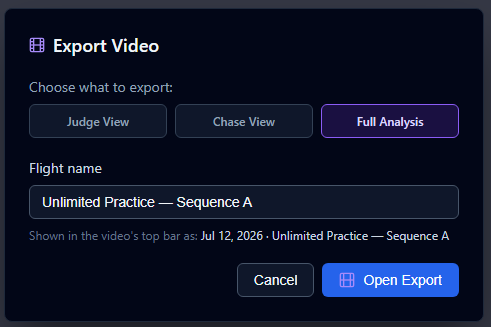
Choose what to export
Select one of three layout modes:
| Layout | Description |
|---|---|
| Judge View | Full-frame judge perspective only, with the title bar. |
| Chase View | Full-frame chase camera only, with the title bar. |
| Full Analysis | Composite layout matching the desktop Analysis window: judge view and strip chart on the left, chase view and map on the right. |
Flight name
Enter a name for the flight. It appears in the video title bar after the flown date, formatted as:
{date} · {flight name}For example: Jul 12, 2026 · Unlimited Practice — Sequence A
If you leave the name blank, ACROWRX uses the flight title from the database. The dialog shows a live preview of the final title bar text.
Click Open Export to continue. ACROWRX opens the export page in a new browser tab and passes your current analysis settings (crop range, judge position, chase camera, map view, strip chart selection, and field of view).
Export page
The export page runs entirely in your browser. It loads the flight, prepares the composite renderer, and encodes the video locally using WebCodecs.
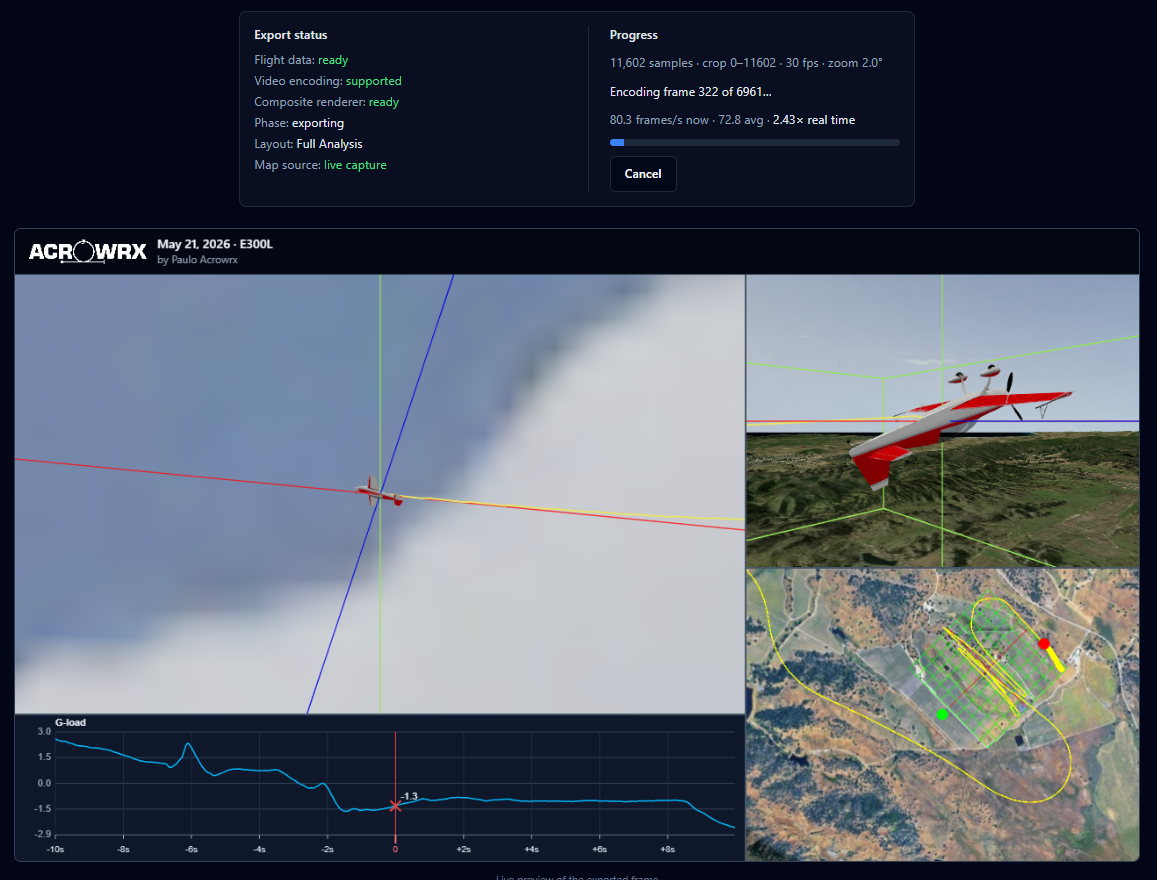
Export status panel
The left column shows readiness checks:
| Item | Description |
|---|---|
| Flight data | Whether the flight loaded successfully (ready, loading, or error). |
| Video encoding | Whether your browser supports WebCodecs for MP4 encoding. |
| Composite renderer | Whether the 3D/map/strip-chart canvases initialized. |
| Phase | Current step: idle, preparing, waiting-terrain, exporting, done, cancelled, or error. |
| Layout | The layout mode you chose in the dialog (Judge, Chase, or Full Analysis). |
| Map source | For Full Analysis exports, whether the map was captured live or fell back to a static image. |
Progress panel
The right column tracks encoding:
- Sample count and crop range — number of data samples and the index range being exported.
- Frame rate — 30 fps by default.
- Zoom — judge field of view in degrees.
- Encoding progress — current frame of total frames, with a progress bar during export.
- Render rate — frames per second and real-time multiplier (e.g.
0.13× real timemeans the export runs slower than playback speed).
Export starts automatically about one second after everything is ready. You can also click Start Export Now or Try Again if needed.
Cancel and completion
- Click Cancel during encoding to stop the export.
- When finished, the MP4 downloads automatically to your browser's downloads folder. The filename is
{flight-name}-export.mp4. - A green confirmation message appears: "Video exported successfully. Check your downloads folder."
Browser requirements
Video export requires WebCodecs support for H.264 encoding. Supported browsers include:
- Google Chrome (recent versions)
- Microsoft Edge (recent versions)
- Safari 16.4+
If your browser is not supported, the export page shows "Video export requires WebCodecs (Chrome, Edge, or Safari 16.4+)."
What gets captured
The export captures the analysis state at the moment you opened the dialog:
| Setting | Source |
|---|---|
| Crop range | Current crop handles |
| Judge position, heading, distance, height | Left-menu judge controls |
| Chase camera angle and distance | Current chase view |
| Map center and zoom | Current map view |
| Strip chart signals and window size | Active strip chart configuration |
| Judge field of view (zoom) | Current judge zoom level |
| Airplane model and alignment | Right-menu airplane configuration |
| Sequence figure diagram | When sequence + complete figure markers exist (same as public share link) |
📌 - TIP
Position the chase camera, map, and strip chart the way you want them before clicking Export Video. Those settings are frozen when the export tab opens.
Sequence figures overlay
When the flight has both of the following, the exported video shows the current sequence figure diagram on the judge panel — the same overlay used on public shared flight links:
- A sequence assigned to the flight (OpenAero figure images in your sequence folder).
- Complete figure start markers on the timeline (one marker per figure, saved to the database).
The figure image appears in the top-right corner of the judge or chase view (whichever is exported) and updates as playback advances through each figure segment. It is included in Judge View, Chase View, and Full Analysis layouts when sequence figures are available.
If markers are missing or incomplete, or the flight has no sequence, no figure overlay is shown.
📌 - TIP
Place figure start markers on the timeline before exporting, the same way you would for contest scoring or a shared link. See Uploading Flights — figure start markers.
Availability
| User | Can export? |
|---|---|
| Flight owner viewing their own uploaded flight | Yes |
| Viewing someone else's public flight | No |
| Free (non-subscribed) user viewing a public flight | No |
The Export Video button appears in the left menu only when all of the following are true: you are viewing a database flight (isViewing), flight data is loaded, a file URL parameter is present, and you are the flight owner.
Troubleshooting
| Issue | What to try |
|---|---|
| Export Video button missing | Confirm you opened your own flight from the database, not a locally loaded file. |
| WebCodecs not supported | Switch to Chrome, Edge, or Safari 16.4+. |
| Terrain load timed out | Export continues anyway; terrain may be incomplete in early frames. |
| No frames to export | Widen your crop range so it includes at least one sample. |
| Map shows static fallback | Live map capture failed; the export uses a static map image instead. |
Related pages
- Left & Right Menus — judge setup, crop, and download controls
- Judge View — judge perspective details
- Chase View — chase camera controls
- Map View — map navigation
- Data Time History — strip chart signals
- Download Flight Data API — programmatic CSV export